


Important voicemails may need to be preserved for legal, business, or personal reasons. Learn how to permanently save voicemails on iOS and Android devices with this easy, step-by-step guide.
Whether you need to preserve an important business message or keep a special voicemail from a loved one, some recordings are worth saving for the long term. Backing up voicemails can also protect them from device loss, damage, or failure while helping free up valuable storage space.
However, permanently storing voicemails isn’t always straightforward. The steps can vary depending on your device and operating system, and some methods may require a third-party app. In the guide below, we’ll walk you through the different ways to save voicemails permanently on your device.
Saving Voicemails on iOS
On an iPhone, you can save a voicemail by sharing the recording to a storage location of your choice. Follow these steps:
- Open the Phone app and tap Voicemail.
- Select the voicemail you want to keep.
- Tap the Share button in the upper-right corner.
- Choose where you want to save or send the voicemail, such as Files, iCloud Drive, or another available storage option.
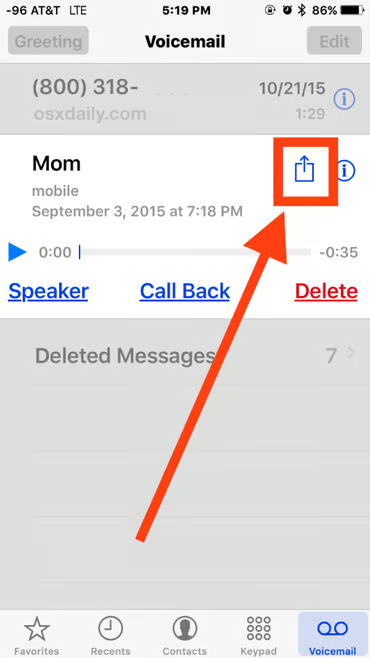
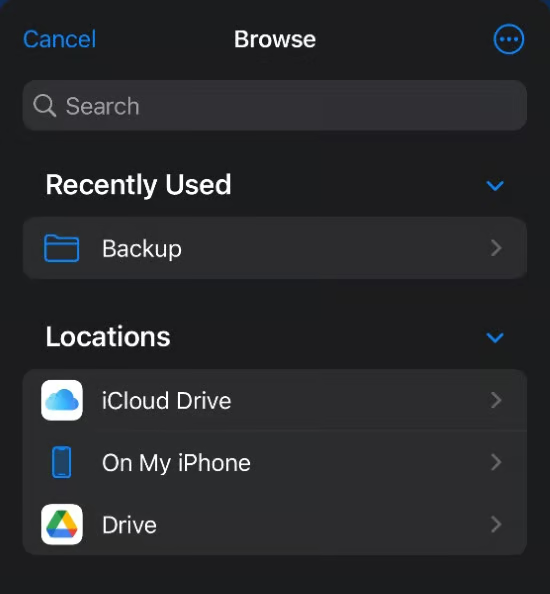
The storage options available may differ depending on the apps installed on your iPhone. However, they are generally organized into two sections (see Figure A):
- Recently Used: Displays the storage option you have used most recently.
- Locations: Lists the storage services available on your iPhone, such as iCloud Drive, Google Drive, and Dropbox.
Figure A
You can also use the Messages or Mail apps to send a voicemail as a text message or email. However, for long-term storage, it’s better to swipe through the available sharing options until you find Notes or Voice Memos (see Figure B).
Figure B
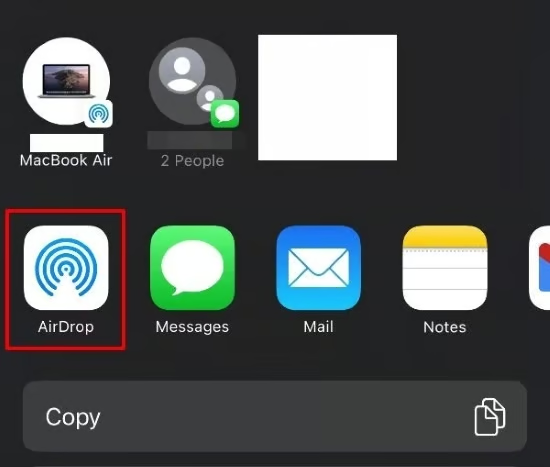
Apple recommends saving voicemail messages through Notes or Voice Memos. Since Voice Memos is specifically designed for audio recordings, it’s often the more convenient option. If Voice Memos is synced with your iCloud account, a copy of the saved voicemail will also be stored in iCloud, allowing you to access it whenever you need it.
Saving Voicemails on Android
Because Android devices and voicemail apps can vary by manufacturer and carrier, the exact steps may differ. However, the process for saving a voicemail typically follows these steps:
- Open your Voicemail screen.
- Select the voicemail you want to save and tap the three-dot menu in the upper-right corner.
- Tap Save to store the voicemail (see Figure D).
Figure D
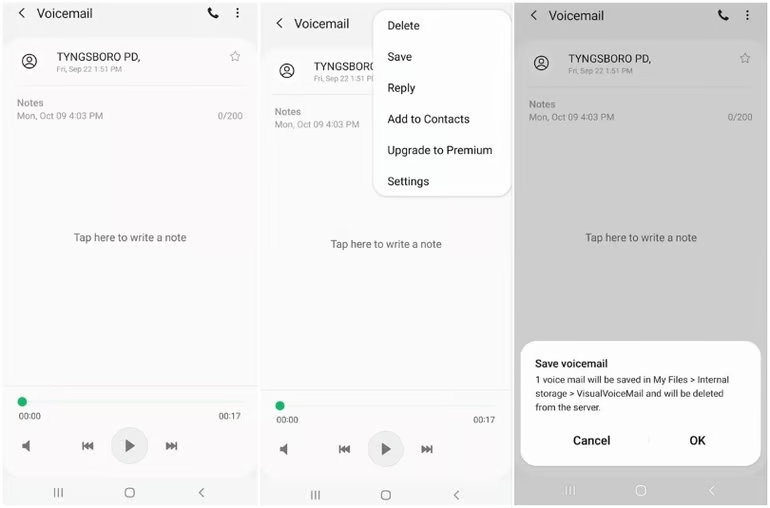
A prompt similar to the one shown above will appear, displaying the local file path where the voicemail will be saved. The recording will then be stored directly on your phone.
Saving Voicemails to the Cloud
For extra protection, you can back up your saved voicemail to an SD card or a cloud storage service such as Dropbox or Google Drive.
- On your phone, open My Files > Internal Storage > VisualVoiceMail to locate the saved voicemail.
- Press and hold the voicemail file to select it.
- Tap Share in the bottom toolbar. A list of compatible apps and services for sharing the file will appear (see Figure E).
Figure E
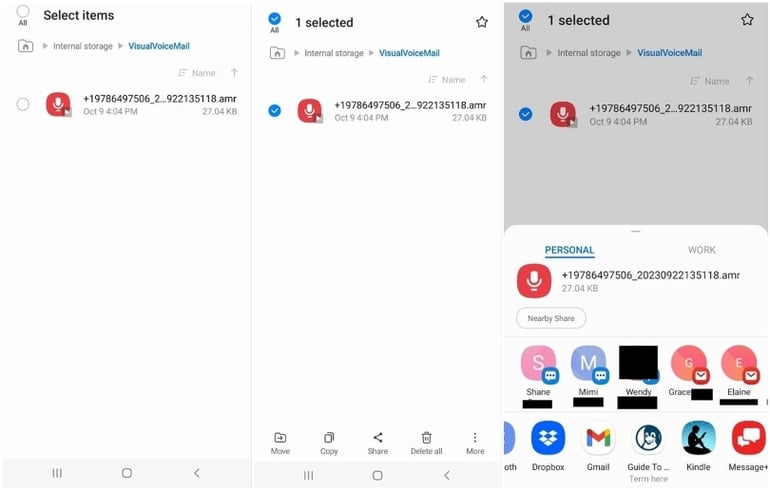
4. Select the cloud storage app you prefer, then follow the on-screen instructions to upload and save the voicemail.
Alternatively, you can connect your Android phone to a PC and use Windows File Explorer to locate and copy the voicemail file to your computer (see Figure F).
Figure F

Next, cut and paste the .AMR file into your Dropbox folder. Storing the voicemail in Dropbox provides an additional backup, ensuring you can still access the recording if your phone or PC is lost, damaged, or experiences a hardware failure.
Alternative Methods for Saving Voicemails Securely
If you plan to reuse voicemail recordings later or want additional ways to preserve them permanently, consider these alternative methods.
Use a VoIP Service
Voice over Internet Protocol (VoIP) services often include built-in voicemail management, call logs, and recording features. You can download important voicemail recordings directly from the service’s admin dashboard and store them wherever you prefer.
This method is particularly useful for businesses and IT professionals who already use VoIP platforms such as RingCentral, Zoom Phone, or Dialpad, or anyone looking for a dedicated business phone system.
Related read: 7 Key Things to Know About VoIP Before Signing a Contract
Enable Voicemail-to-Email Forwarding
Many voicemail services allow you to forward messages directly to your email. You can enable this feature through your phone settings or the service’s admin portal. Once activated, voicemails are delivered to your inbox as audio attachments, making them easier to store, search, sort, and organize.
Related read: How to Use an Email Forwarding Service
Record Voicemails Manually
Although it’s not the most convenient method, manually recording a voicemail can be a simple way to preserve it. Use a second device to record the audio while playing the voicemail on your primary phone.
You can then save, edit, or trim the recording as needed. For the best results, record in a quiet environment with minimal background noise to ensure the final audio is clear and easy to hear.
Frequently Asked Questions
Can I permanently save voicemails on my iPhone?
Yes. You can save iPhone voicemails to the Files app, Notes, Voice Memos, or a cloud storage service such as iCloud Drive, Google Drive, or Dropbox.
How do I save a voicemail permanently on Android?
Open the voicemail, tap the three-dot menu, and select Save if the option is available. You can then move the saved file to an SD card, computer, or cloud storage for long-term backup.
Where are saved Android voicemails stored?
The location depends on your device and voicemail app. On some Android phones, saved visual voicemails can be found under My Files > Internal Storage > VisualVoiceMail.
Can I save a voicemail to Google Drive or Dropbox?
Yes. After saving the voicemail to your device, use the Share option to upload it to Google Drive, Dropbox, or another supported cloud storage service.
What is the safest way to preserve important voicemails?
Keeping multiple copies is the safest approach. Save the voicemail locally and create an additional backup in cloud storage or on another device to protect it from accidental deletion, device failure, or loss.
Conclusion
Saving important voicemails permanently is easier when you choose a reliable backup method and keep more than one copy. Whether you use an iPhone, Android device, cloud storage, email, or a VoIP service, transferring the recording to a secure location helps protect it from accidental deletion, device damage, or hardware failure. For especially important messages, consider keeping both a local and cloud backup so you can access the voicemail whenever you need it.
