


Just how private are the conversations you have with your favorite AI chatbot?
Last week, reports revealed that some conversations with Anthropic’s Claude AI could be discovered through a Google dork—an advanced search query that can uncover publicly indexed content. To be clear, users had already shared those conversations through active links. Still, they likely never expected the contents of those chats to become visible to anyone who knew how to search for them.
Also: 5 reasons you should be more careful about what you share with your chatbot—and how to fix past mistakes
Anthropic quickly addressed the issue and disabled this type of indexing. But it raises a bigger question: How private are your AI conversations really?
The answer depends partly on how you use these services. While AI companies don’t always make their privacy controls easy to find, most provide settings that let you decide how your conversations are stored, used, and shared. Knowing where those controls are—and using them—is one of the best ways to keep your AI chats as private as possible.
Toward that end, let’s look at four major AI chatbots and cover steps to tighten your privacy as much as possible.
ChatGPT
1. Use ChatGPT Without an Account
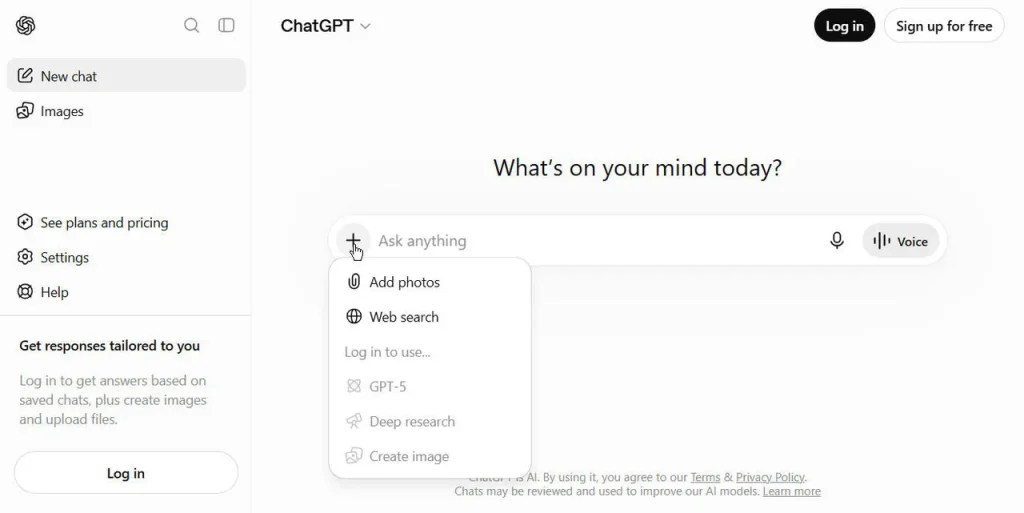
If you don’t want your ChatGPT conversations tied to an account or saved to your chat history, you can use the service without signing in. If you already have an account, simply log out before starting a conversation.
There are some trade-offs: certain advanced features won’t be available, and usage limits may be lower. Still, if you’re asking about something sensitive and don’t want the conversation associated with your account, using ChatGPT without signing in can be a useful option.
2. Use a Temporary Chat
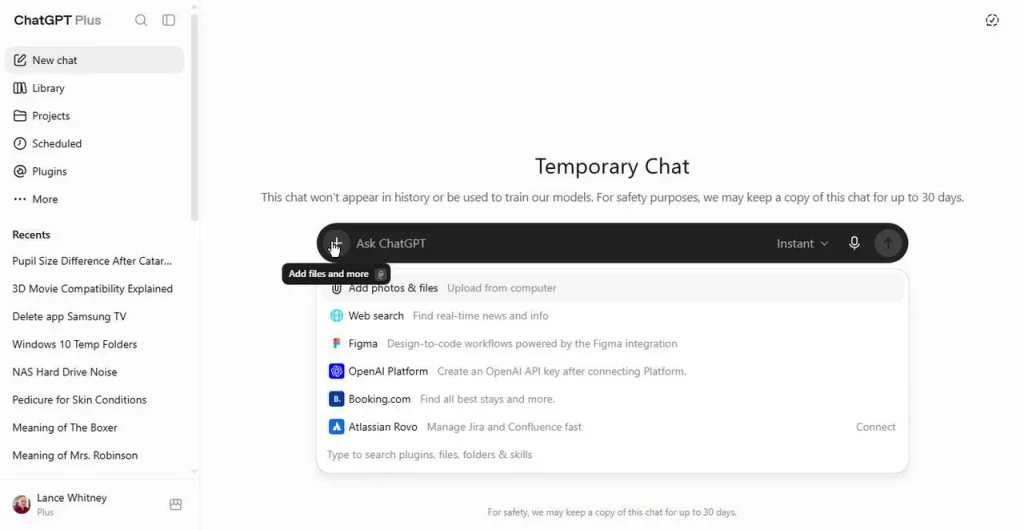
If you’re signed in to your ChatGPT account but don’t want a particular conversation saved to your chat history, use Temporary Chat. In the ChatGPT window, click the circular “Turn on Temporary Chat” icon in the upper-right corner.
The chat interface will change, and a notice will explain how Temporary Chat works. While this gives you more privacy and prevents the chatbot from remembering the conversation, it’s still best to avoid sharing highly sensitive or confidential information. For more personal or one-off questions, however, Temporary Chat offers an extra layer of privacy.
3. Turn Off AI Model Training
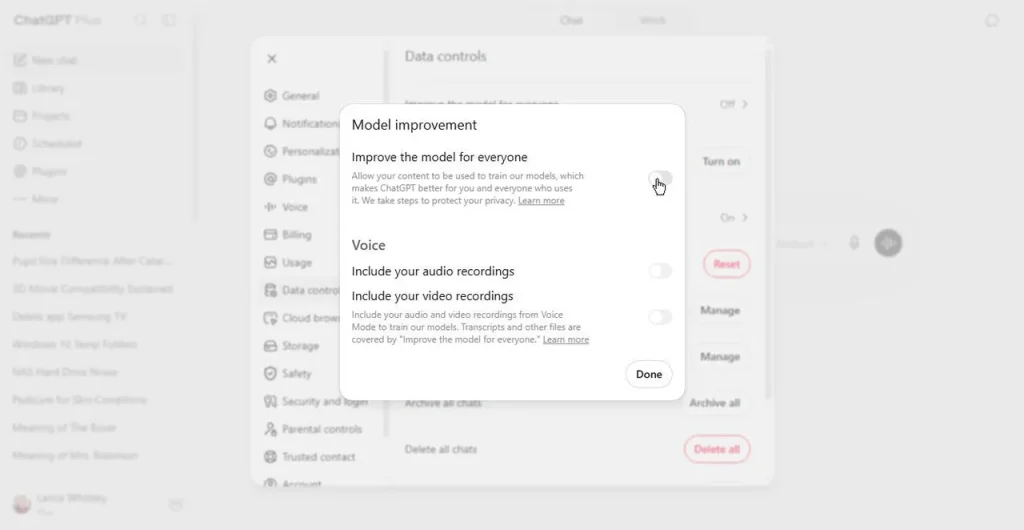
OpenAI may use ChatGPT conversations to help improve its models. Although the data used for training isn’t intended to be directly tied to your name or account, you may still prefer to keep your conversations out of the training process, especially if they contain personal or sensitive information.
To disable this setting, click your account name at the bottom of the left sidebar, then select Settings > Data Controls. Find “Improve the model for everyone” and switch it off. Once disabled, your new conversations won’t be used to improve OpenAI’s models.
4. Be Careful When Sharing Private Conversations
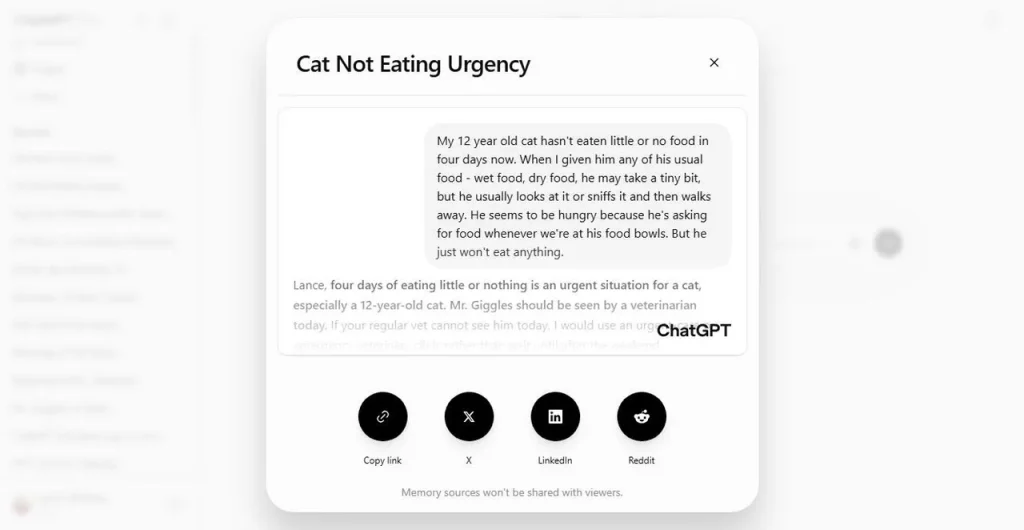
ChatGPT lets you share conversations through platforms such as X, LinkedIn, and Reddit, or simply by generating a shareable link. However, once you create a shared link, anyone who has access to it may be able to view the conversation for as long as the link remains active.
Before sharing a chat, consider what information it contains and whether you’re comfortable with it being seen by others. This is especially important when the conversation includes personal details, sensitive information, or anything you wouldn’t want publicly accessible.
5. Delete Any Past Conversation
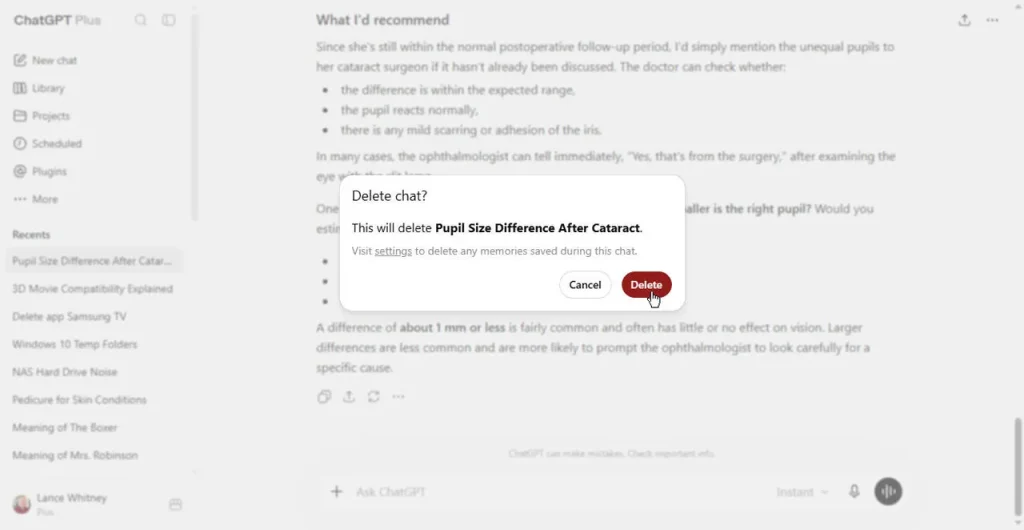
If you have an old ChatGPT conversation that contains sensitive or personal information, you can delete it from your chat history. Find the conversation in the sidebar, click the ellipsis (⋯) next to it, and select Delete. Confirm the deletion when prompted.
Removing sensitive chats from your history can help reduce the amount of personal information stored in your account and makes it less likely you’ll accidentally share the conversation later.
Google Gemini
1. Use Gemini in Temporary Mode
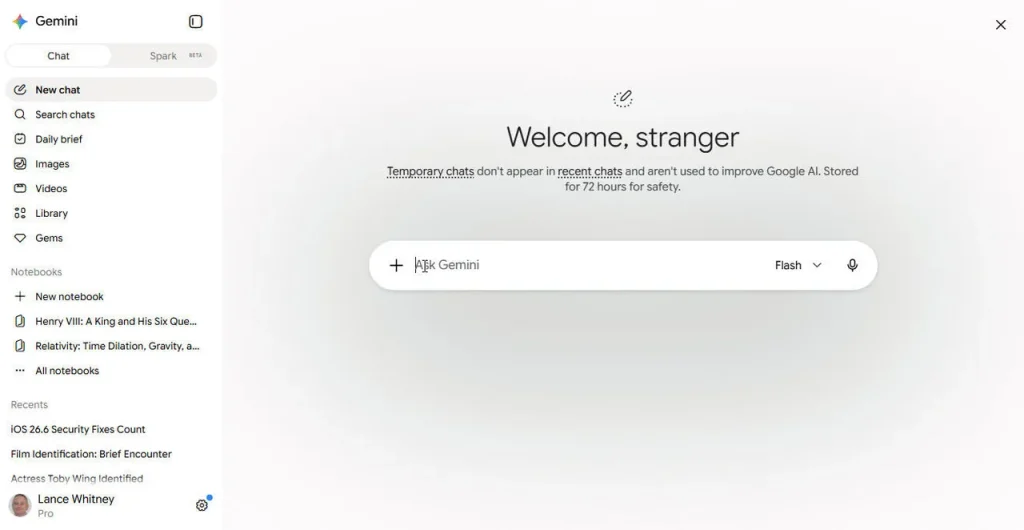
Like ChatGPT, Gemini offers a temporary chat option for conversations you don’t want added to your regular chat history. Temporary chats aren’t used to personalize your Gemini experience or train the AI model.
To start one, click Temporary chat next to New chat in the left sidebar. Gemini will display information about how temporary chats work before you begin. Enter your prompt and start chatting as usual.
Keep in mind that temporary conversations aren’t necessarily deleted immediately. Gemini retains them for up to 72 hours before they’re removed.
2. Disable AI Training
By default, Google may use your Gemini conversations to help improve its AI models. While Google says the data is handled with privacy protections, you may still prefer to keep your conversations out of the training process.
The catch is that disabling this use of your data also means turning off Gemini’s ability to save your past conversations. As a result, your chats won’t appear in your Gemini chat history or be stored in your Google activity history. If keeping your conversations private is more important than having a persistent chat history, this may be a worthwhile trade-off.
That’s a significant drawback. Still, if you want to opt out of AI training and don’t need access to your previous chats, turning off Gemini activity may be your only option.
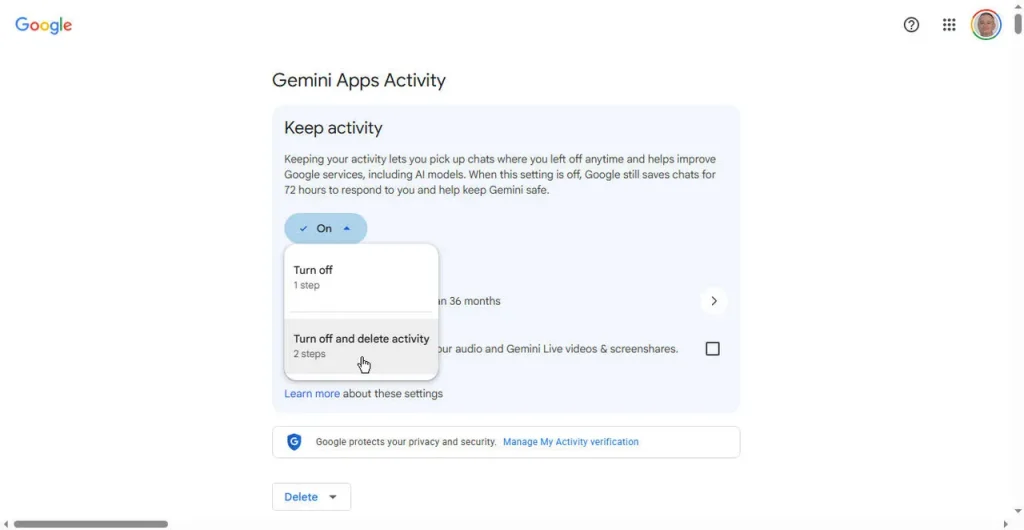
Sign in to the Gemini Apps Activity page with your Google account, or click the Settings icon at the bottom of the left sidebar and select Activity. If Keep activity is enabled, click the drop-down menu and choose Turn off. You can also use this page to delete your existing activity if you want to remove past conversations.
If you turn off activity without deleting everything, scroll through your previous Gemini interactions and review what has been stored. Click the X next to any individual activity you want to remove for additional privacy.
3. Delete Public Links to Shared Conversations
Like other AI chatbots, Gemini lets you share conversations by creating a public link. To share a chat, click the three-dot icon next to the conversation and select Share conversation. Gemini will automatically generate a public link.
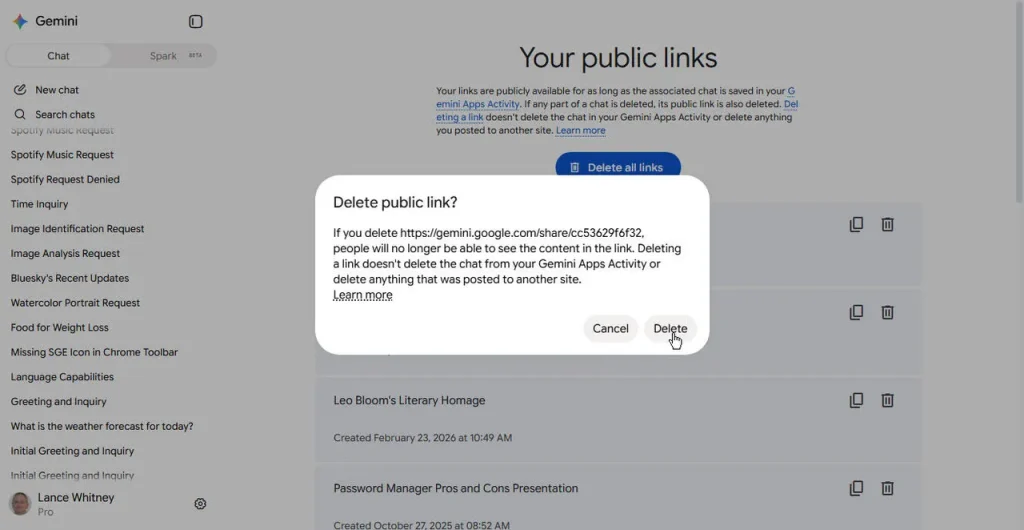
It’s a good idea to periodically review these shared links and remove any you no longer want others to access. To do this, click the Settings icon and select Your public links. Find the conversation you want to remove and click the trash can icon next to it.
If you want to remove all public links at once, click Delete all links at the top of the page. Deleting a public link doesn’t delete the original conversation, so it will remain available to you in your Gemini chat history.
4. Stop Gemini Live From Storing Your Voice Conversations
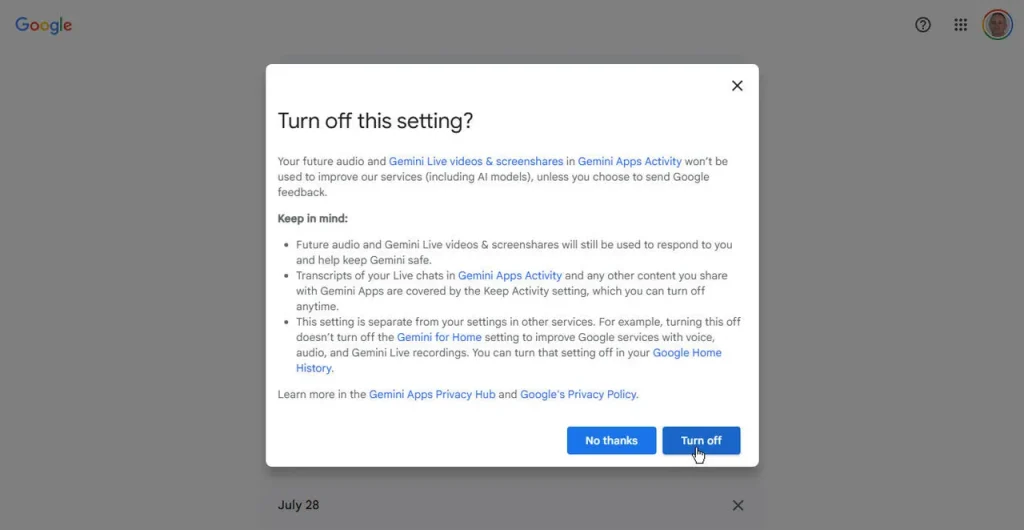
Gemini Live lets you interact with Google’s AI using your voice, but those conversations can involve more data than just text. Depending on your settings, Google may use audio recordings from your Gemini Live sessions, along with screenshots or screen shares from those conversations, to improve its services. Some recordings may also be reviewed by human reviewers with identifying information removed.
If you’d rather not allow this, you can turn off the setting. Open Settings and select Activity. Find “Improve Google services with your audio and Gemini Live videos & screenshares” and uncheck the box. Then click Turn off to confirm your choice.
5. Turn Off Personal Intelligence’s Memory Feature
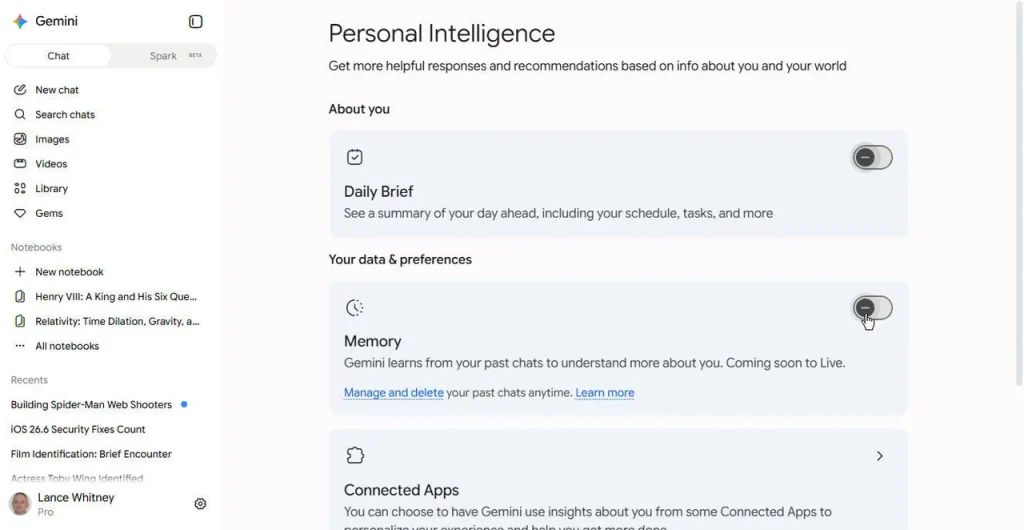
With Personal Intelligence Memory enabled, Gemini can use information from your previous conversations to better understand your interests, preferences, and other personal details. While this can make responses more personalized, it also means the AI retains more information about you over time.
If you’d rather limit what Gemini remembers, you can disable the feature. Go to Settings and select Personal Intelligence. If the Memory switch is enabled, turn it off to prevent Gemini from using this feature.
Microsoft Copilot
1. Disable AI Training
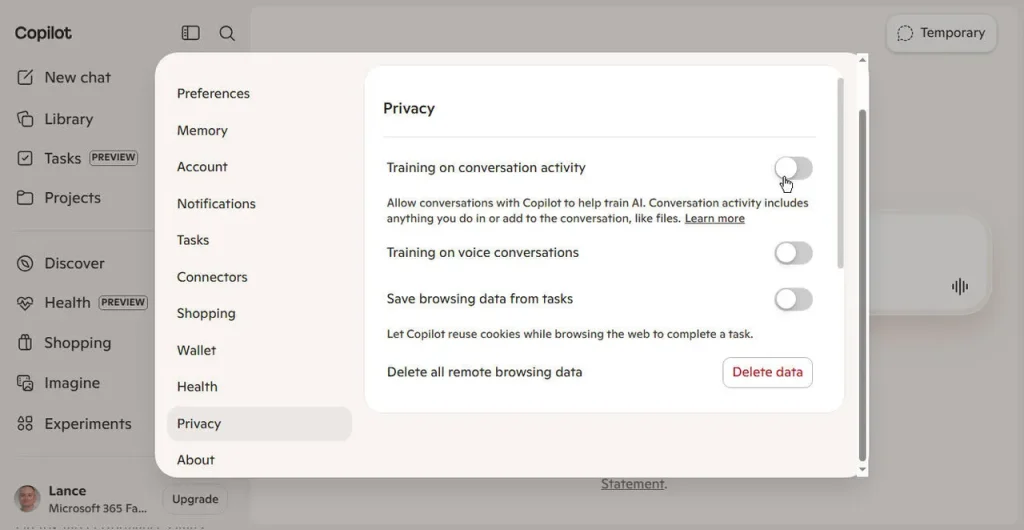
Microsoft may use your text and voice conversations with Copilot to help train and improve its AI models. If you’d rather keep your conversations out of the training process, you can turn off these options.
On the Copilot website or desktop app, click your account name at the bottom of the left sidebar, select Settings, and then choose Privacy. On the Copilot mobile app for iOS or Android, tap the three-line menu in the upper-left corner, select your account icon at the bottom, choose Account, and then tap Privacy.
From there, turn off both “Training on conversation activity” and “Training on voice conversations.”
2. Delete Links to Shared Conversations
Copilot lets you share conversations in several ways, depending on whether you’re using the website, a desktop app, or a mobile device. On the Copilot website or desktop app, find the conversation you want to share and click the ellipsis (⋯) next to it. Select “Send a copy” from the menu, then click “Copy link” to generate a shareable URL.
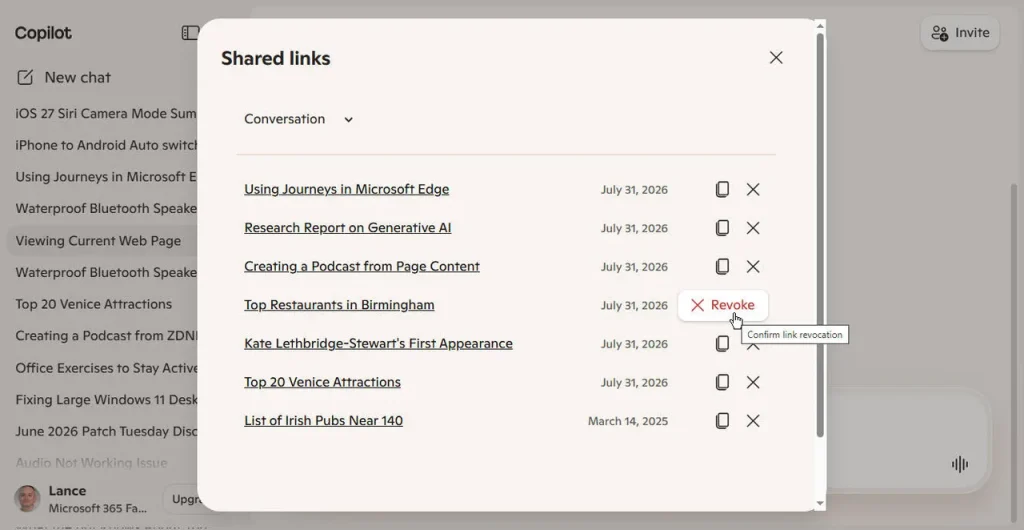
If you’ve previously shared conversations, it’s worth reviewing those links regularly and removing any you no longer want others to access.
2. Delete Links to Shared Conversations
Copilot gives you several ways to share a conversation, with the available options varying by platform. On the Copilot website or desktop app, locate the chat you want to share, click the ellipsis (⋯) next to it, and select “Send a copy.” Then click “Copy link” to create a shareable link.
If you’ve shared conversations in the past, take some time to review those links and remove any you no longer want to remain accessible. This is especially important for chats that contain personal, sensitive, or confidential information.
3. Delete a Conversation
You can remove any Copilot conversation you no longer want stored in your chat history. On the Copilot website or desktop app, find the conversation you want to delete, click the ellipsis (⋯) next to it, and select Delete. Click Delete again to confirm.
If you’re using the Copilot app on iOS or Android, press and hold the conversation, select Delete, and then tap “Delete conversation” to complete the process.
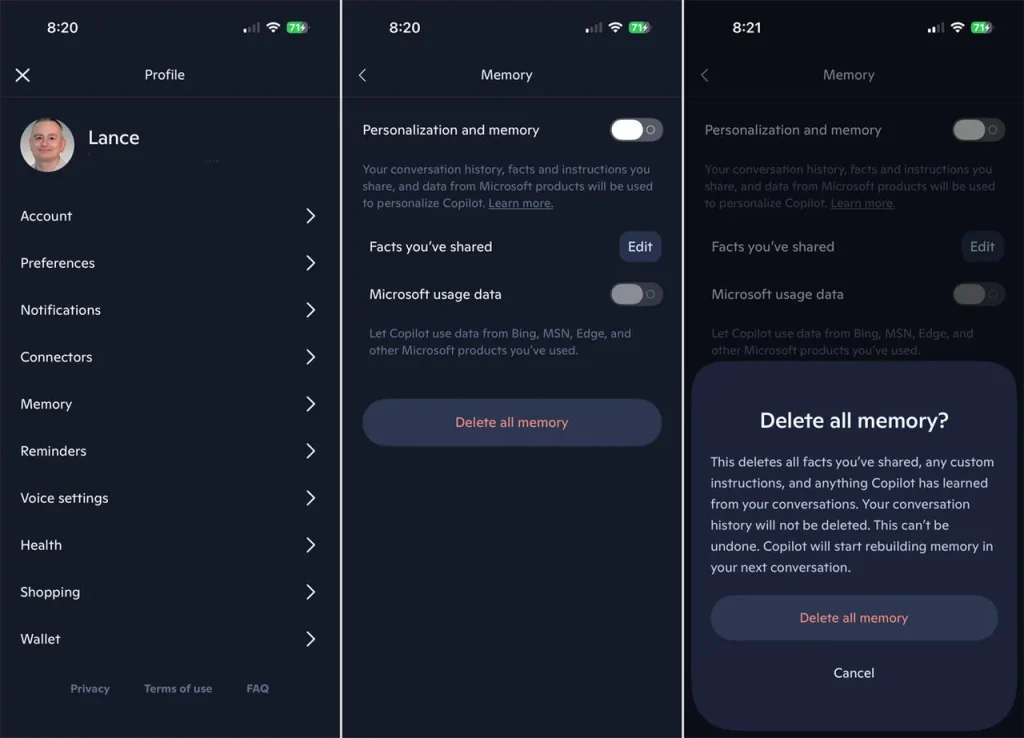
4. Disable Copilot’s Memory
Copilot can remember details from your conversations and other information you share with it. While this memory can help personalize responses, you may not be comfortable with the amount of information it retains.
Depending on your settings, Copilot may also use information from other Microsoft services you use, including Bing, MSN, and Edge. If you’d rather limit this data collection, you can disable Copilot’s memory, turn off access to information from Microsoft services, or disable both options.
To manage these settings, open Settings and select Memory. Turn off “Microsoft usage data” to prevent Copilot from using information gathered from your Microsoft products and services.
You can also disable “Personalization and memory” if you don’t want Copilot to remember details about you or use them to personalize future responses. On the mobile apps, you can additionally delete any information that Copilot has already saved to its memory.
5. Remove Connections to Third-Party Services
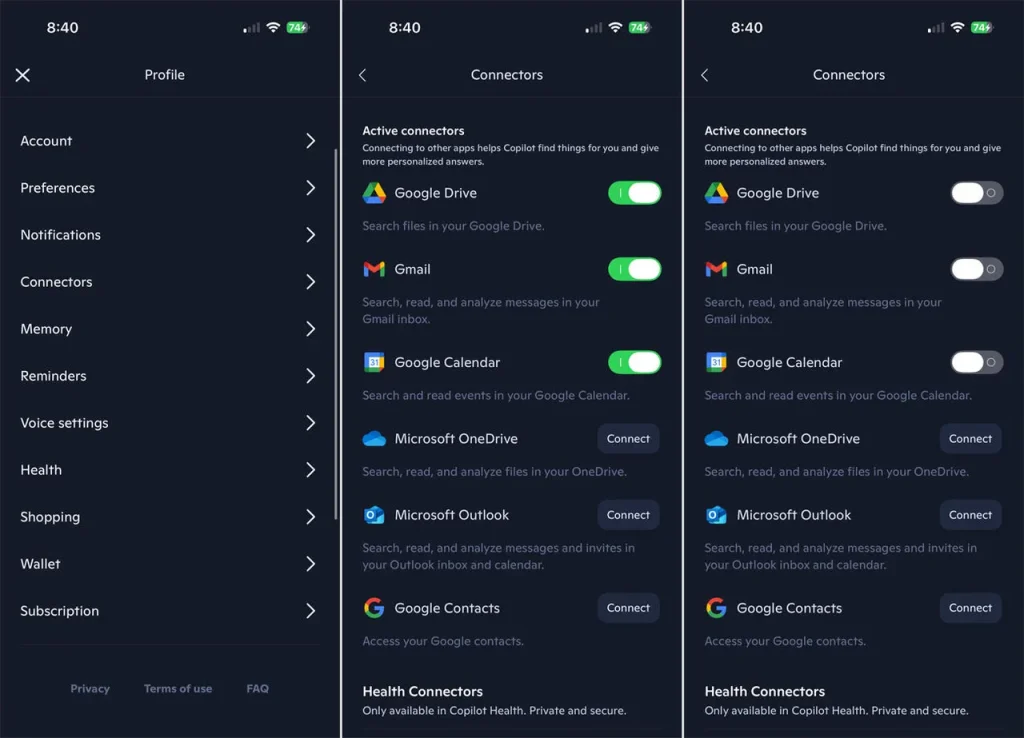
Copilot can connect to external services such as Microsoft OneDrive, Outlook, Google Drive, Gmail, and Google Calendar. When these connections are enabled, Copilot may be able to access, search, and analyze information from those accounts, which can be useful when you’re asking it to work with your files, emails, or calendar.
However, if you don’t need these integrations or prefer to limit Copilot’s access to your personal data, it’s worth reviewing your connected services. Go to Settings and select Connectors. If you see a service you no longer want connected, simply turn off its switch to disconnect it.
Claude AI
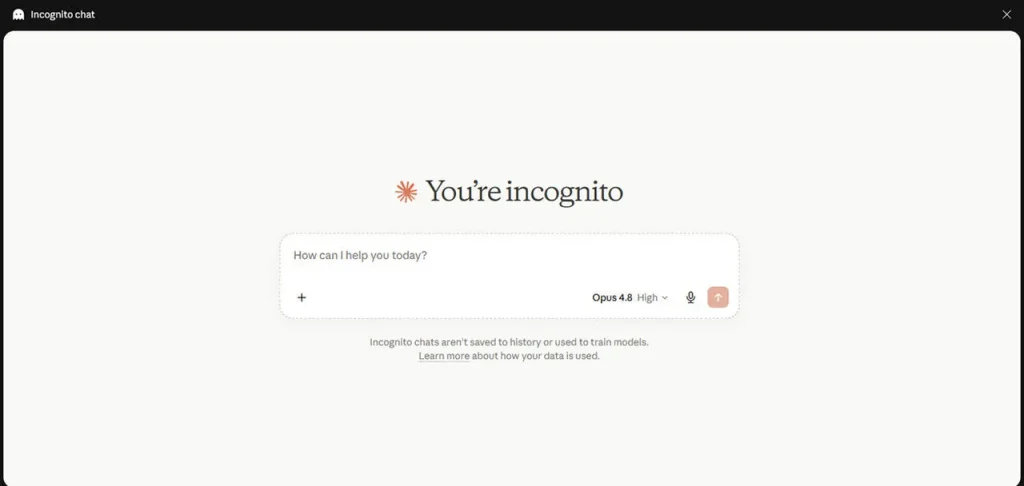
1. Chat Incognito
If you’re discussing something sensitive with Claude and don’t want the conversation saved or remembered, you can use Incognito Chat. From the New Chat screen, click the ghost icon in the upper-right corner to start an incognito conversation.
Once enabled, you can chat with Claude without having the conversation added to your regular chat history or used as persistent context. It’s a useful option when you want to keep a particular conversation separate from your usual chats.
2. Control How You Share a Conversation
This is the feature that sparked many of the recent privacy concerns surrounding Claude. Like other AI chatbots, Claude allows you to share conversations through public links. However, it’s important to think carefully about what you share and who might be able to access it.
Before generating a public link, review the conversation for personal, sensitive, or confidential information. Only share chats when you’re comfortable with their contents potentially being seen by others.
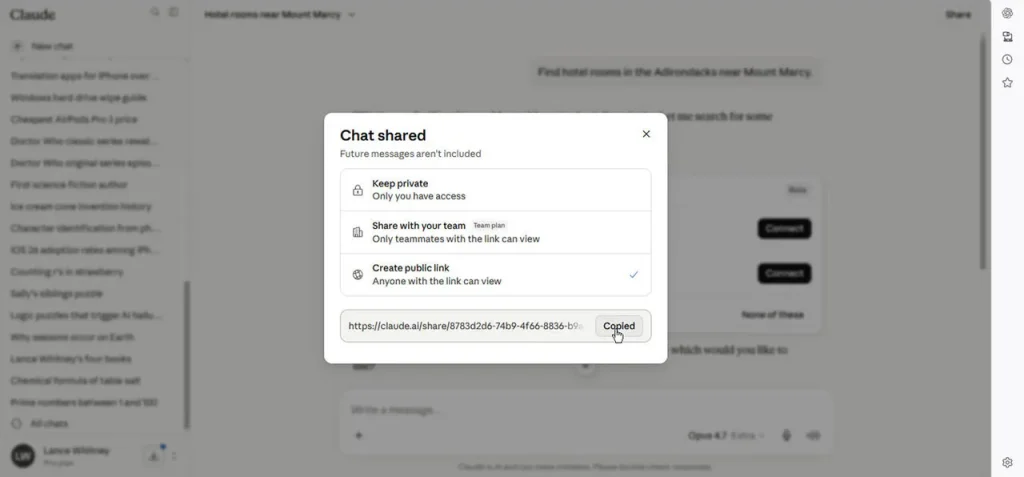
If you want to share your current conversation, click the Share icon in the upper-right corner. In the Chat Shared window, Claude gives you three options.
- Keep private: Only you can access the conversation.
- Share with your Team: Lets you share the chat with members of your team. This option is available only with the Claude AI Team plan.
- Create public link: This is the default option and allows anyone who has access to the link to view the conversation.
Select the option that best fits your needs, then share the conversation or copy the link as appropriate. If the chat contains sensitive information, Keep private is the safest choice.
3. Delete Links to Shared Conversations
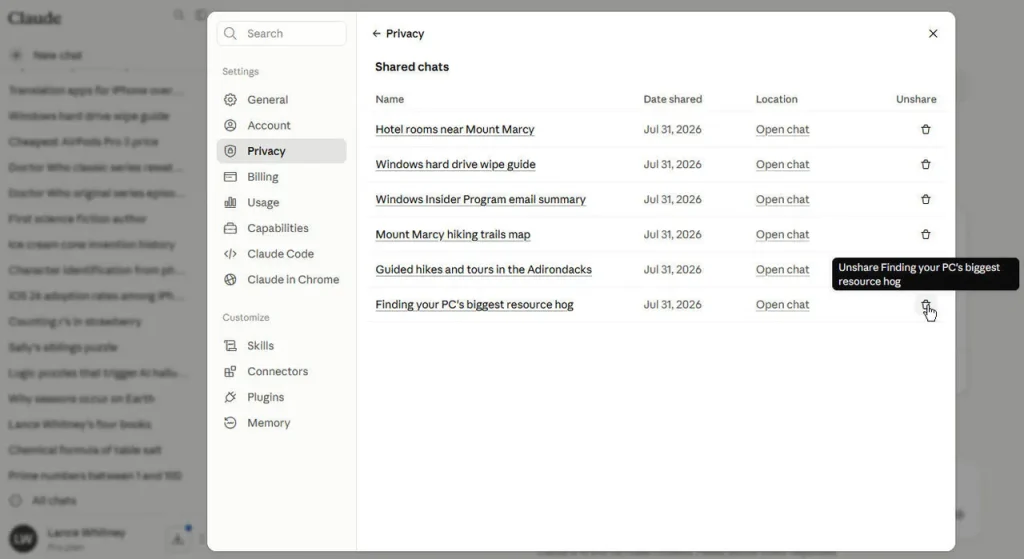
It’s a good idea to periodically review the conversations you’ve shared publicly and remove any links you no longer want available. To do this, click your account name at the bottom of the right sidebar and select Settings.
In the Settings window, choose Privacy, then click Manage next to Shared chats. Find the conversation you want to remove and click the trash can icon. This will deactivate the shared link, while the original conversation will remain available in your chat history.
4. Make Sure Your Chats Aren’t Used for AI Training
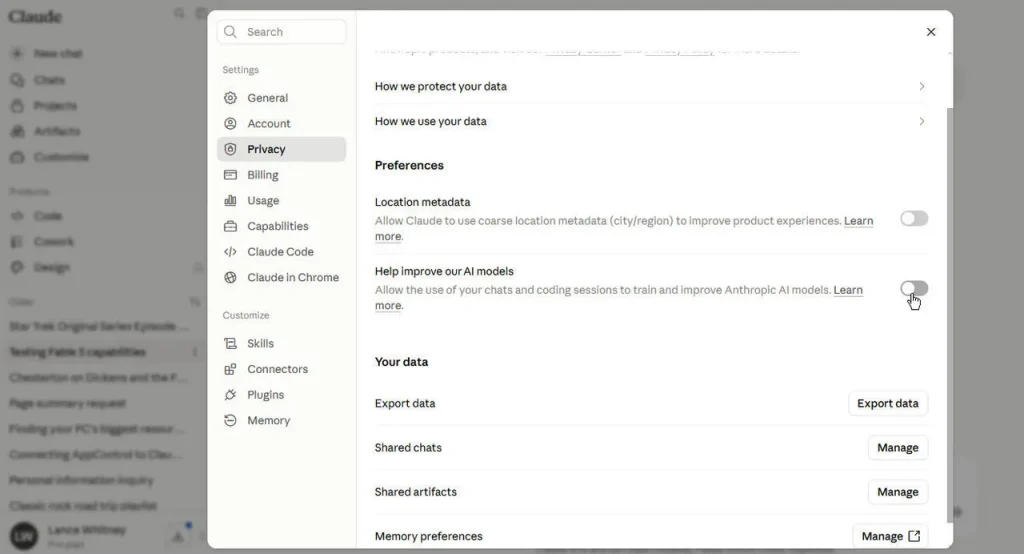
Claude’s AI training option is turned off by default, but it’s still worth checking your settings to make sure your conversations aren’t being used to improve its models.
Open Settings and select Privacy. Look for “Help improve our AI models” and make sure the switch is turned off. If it’s already disabled, no action is needed.
5. Turn Off Claude’s Memory
Like other AI assistants, Claude can remember details from your conversations to make future responses more personalized. While this can be useful, you may prefer not to have Claude retain information from your chats.
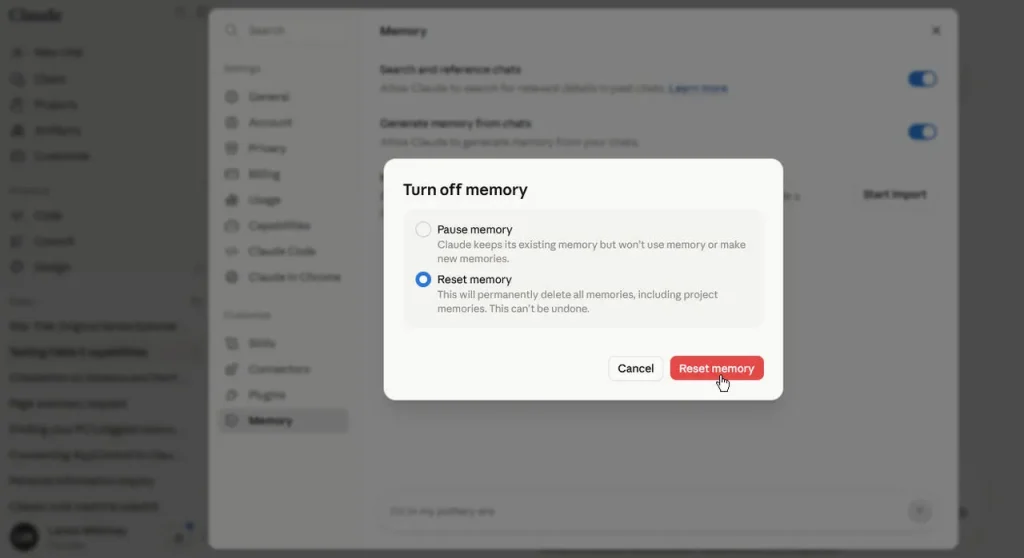
To disable the feature, go to Settings and select Memory. If “Generate memory from chats” is enabled, turn it off. You can also choose to pause memory, which disables the feature while keeping your existing memories, or reset memory, which turns it off and removes the memories Claude has already stored.
Conclusion
AI chatbots can be incredibly useful, but it’s important to remember that convenience and privacy don’t always go hand in hand. Whether you’re using ChatGPT, Gemini, Copilot, or Claude, take a few minutes to review the available privacy, memory, training, and sharing settings.
The safest approach is to avoid entering highly sensitive information whenever possible. For anything you do share, use temporary or incognito modes, disable AI training and memory when appropriate, and regularly review old conversations and shared links. These simple steps won’t make your AI chats completely private, but they can give you much greater control over what is stored, remembered, shared, and used to improve AI services.
